
DG STICKY VIDEO · DIVI 5
Divi Sticky Video
When visitors scroll past a playing video, it moves to a corner of the screen and keeps playing from the same second. Scroll back and it returns to its place.
YouTube, Vimeo, Wistia & more
Never restarts
No code
 Introducing Workspaces for Divi 5
Try it: press play, then scroll down.
Video: Elegant Themes on YouTube.
HOW IT WORKS
One player that follows the visitor
There is never a second copy of the video, so it never starts over and never plays twice.
01
Press play
The video plays in the page like any other video, with its poster, play button and controls.
02
Scroll on
Once it leaves the screen, the same player shrinks into a corner and keeps playing from the same second.
03
Come back or close
Scroll back and it returns to its place. Visitors can also close it, make it smaller, or bring it back with one click.
LIVE EXAMPLES
Ways to use sticky video in Divi
Five sections for five kinds of pages. Play any video and scroll: only one floats at a time. All videos are Elegant Themes videos about Divi 5.
01
Studio Lessons · An online course lesson
BUTTONS ALWAYS SHOWN · PLAY IN THE TOOLBAR
DIVI 5 COURSE · MODULE 4
Lesson 4 of 9
Build a mega menu with the Dropdown module
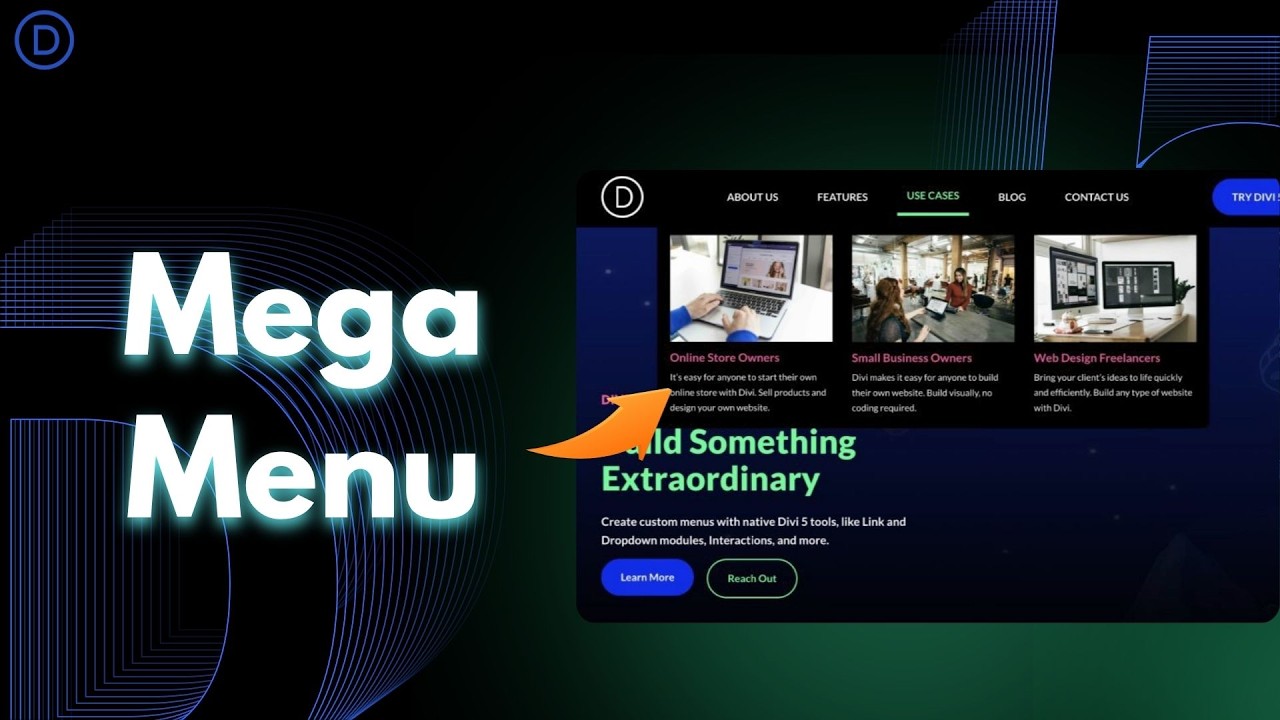 How To Build Mega Menus With Divi 5’s Dropdown Module
Video: Elegant Themes on YouTube.
Lesson notes
Watch the video, then scroll down to the checklist. The video moves to the corner, so you can follow along while you work.
Use the buttons on the small player to pause, make it smaller, or bring it back up here.
Open the header template in the Theme Builder
Add a Dropdown module to the menu row
Build the menu panel with sections and columns
Check the menu on tablet and phone
02
The Builder Weekly · A news article
BOTTOM LEFT · FULL-WIDTH PLAYER ON PHONES
THE BUILDER WEEKLY · NEWS
Divi 5 gets a round of new features
By the newsroom · 3 min read
Elegant Themes has published a full tour of the latest Divi 5 features. We embedded it below, so you can watch it without leaving the article.
 Brand New Features. Full Tour!
Video: Elegant Themes on YouTube.
Keep reading while it plays: the video moves to the bottom-left corner, out of the way of the text. On a phone it becomes a player across the bottom of the screen.
When the article is long, visitors don’t have to choose between reading and watching. If they scroll back up, the video returns to its place in the story.
03
Product tour · A dark feature page
TOP RIGHT · FADE AND GROW · BRAND PLAY BUTTON
FEATURE TOUR
See it, then try it
A tour video next to the feature list. Visitors keep watching in the top-right corner while they read further down the page.
Plays in the top-right corner
Sits below a fixed header
Play button in your brand colour
 How The Command Center Changes The Divi 5 Workflow
Video: Elegant Themes on YouTube.
04
Video library · Several videos on one page
ONE FLOATS AT A TIME · SLIDE IN
VIDEO LIBRARY
Start another, the first steps aside
Put as many videos on a page as you like. When a second one starts, the first goes back to its place and pauses, so there is never more than one small player.
 Five New Modules for Divi 5!
NEW MODULES
Five new modules for Divi 5
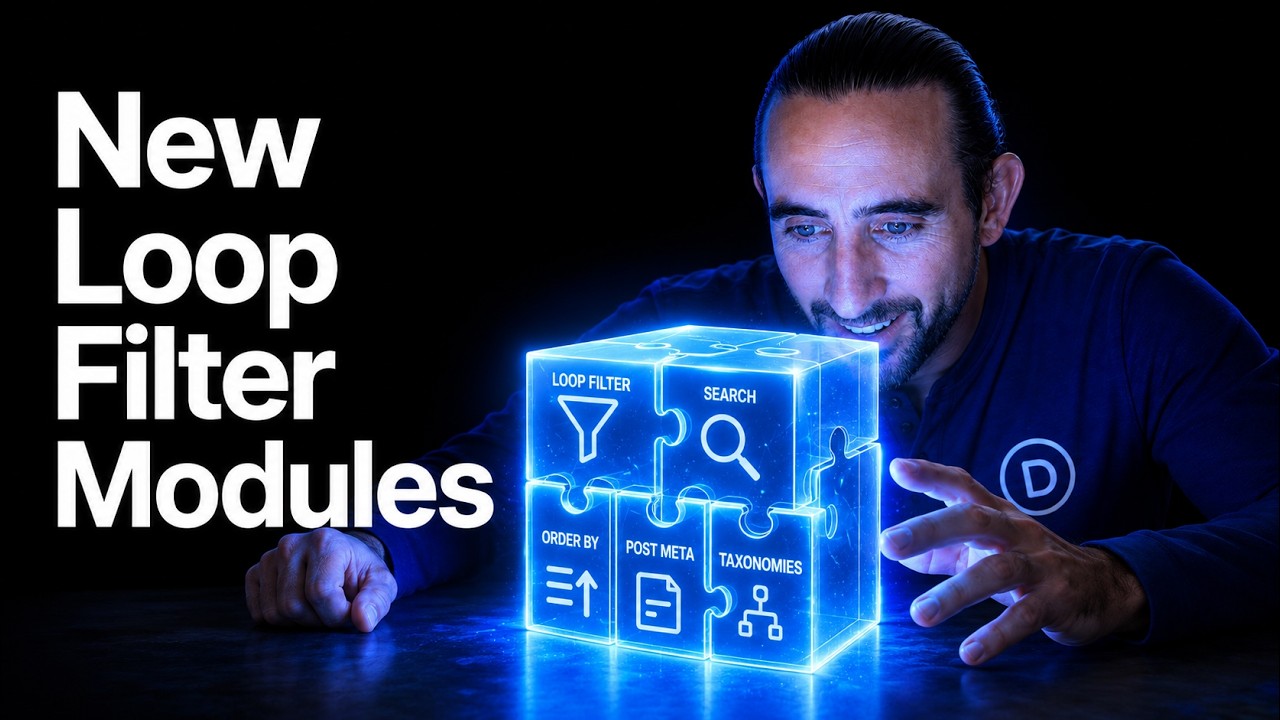 The Loop Builder Just Got Way More Powerful
DYNAMIC CONTENT
The Loop Builder gets more powerful
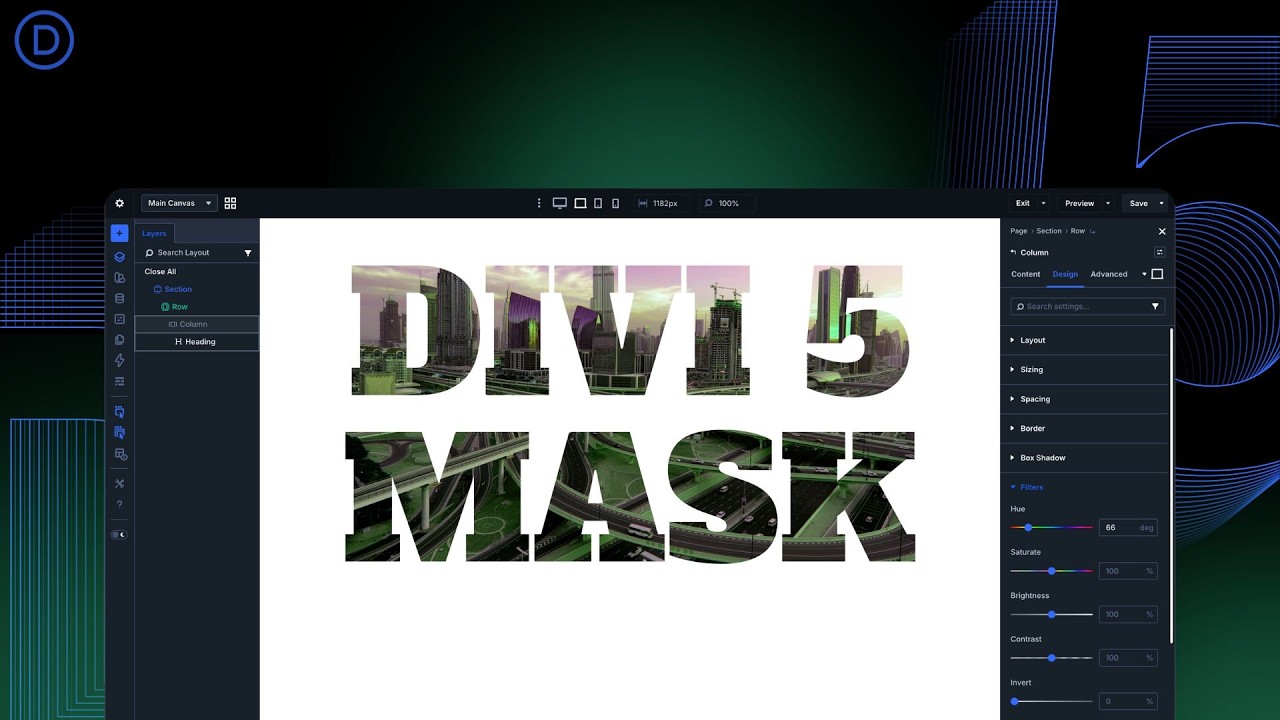 How To Mask Text In Divi 5
TUTORIAL
How to mask text in Divi 5
Video: Elegant Themes on YouTube.
05
Lightbox · A video that opens in a lightbox
STICKY OFF · CLICK THE POSTER
WATCH IN FULL
Open the video big, without leaving the page
Turn floating off and turn on the lightbox: a click on the poster opens the video over the page. Esc or a click outside closes it.
 Introducing Multi-Select & Bulk Editing for Divi 5! 🎉
Video: Elegant Themes on YouTube.
PLAYGROUND
Pick a corner
Each video floats to a different corner with a different animation. Play one and scroll.
TOP LEFT · FADE
 Divi 5 Just Mastered the Grid (Must-See New Feature 👀)
TOP RIGHT · GROW
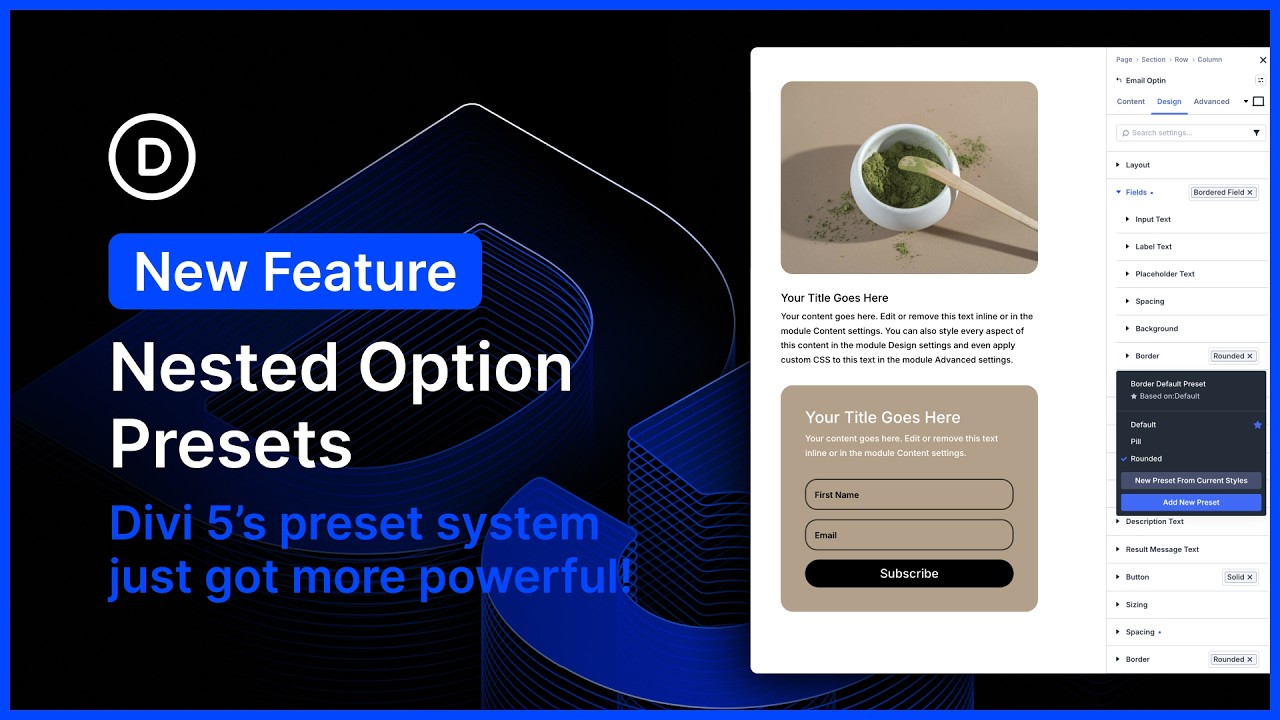 🤯 Nested Options Presets for Divi 5 (New Feature)
BOTTOM LEFT · SLIDE IN
 New Features. 👀 Variable Fonts & Text Styling Options!
BOTTOM RIGHT · FLY TO THE CORNER
 💥 New Form Options, Field Presets, Focus Editing, And CF7 Module for Divi 5
Video: Elegant Themes on YouTube.
FEATURES
Sticky video features
Everything is set in the Divi Builder, with no code.
Any video source
Paste a YouTube, Vimeo, Wistia or Dailymotion link, or use an MP4 or WebM from the Media Library, with a captions file if you have one.
Never starts over
The same player moves to the corner and back, so the video keeps playing from the same second.
Corner, size and spacing
Choose the corner, the width and the distance from the edges, separately for desktop, tablet and phone.
Phone layouts
A small corner player or a full-width player at the bottom, or no floating on phones at all.
Visitor controls
Close, make smaller, bring back to the page, play or pause and mute, with keyboard support.
When it floats
After the visitor scrolls past a playing video, as soon as it plays, always, or after a delay.
Light until clicked
Only the poster loads. The video player loads when the visitor presses play.
Poster and lightbox
Automatic thumbnail or your own poster, title and length on the poster, styled play button, or open the video in a lightbox.
HOW TO
How to add a sticky video in Divi
1
Add the module
In the Divi Builder, add DG Sticky Video where the video should sit on the page.
2
Choose the video
Paste a YouTube, Vimeo, Wistia or Dailymotion link and the module detects the site, or pick a video file from the Media Library.
3
Set the floating player
The default settings already work. Change when it floats, the corner, the width or the phone layout if you like.
4
Style and save
Style the poster, play button and small player in the Design tab, then save.
FAQ
Sticky video FAQ
Short answers about DG Sticky Video. Open as many as you like.
More questions? Ask our team, we reply within 24 hours.
It keeps a playing video on screen while the visitor scrolls. The video moves to a corner, keeps playing, and goes back to its place when the visitor scrolls back up.
No. The module moves the same player instead of opening a copy, so the video carries on from the same second.
YouTube, Vimeo, Wistia and Dailymotion links, video files from your Media Library (MP4, WebM or OGV) and links to video files on other sites.
A Player ID. Dailymotion only plays videos inside a player you create in Dailymotion Studio, under Players. Paste its ID in the module, or use the player’s embed link as the video link.
Only the poster image loads with the page. The video player loads when the visitor presses play, unless you turn on autoplay.
Choose a small corner player or a full-width player at the bottom of the screen, or turn floating off for phones.
Yes. Only one floats at a time: when another video starts, the first one goes back to its place and pauses.
No, DG Sticky Video is a Divi 5 module.
Explore more DiviGrid modules
Off Canvas
Panels that slide in from the side.
Inline Popup
Content that opens in a popup.
Content Toggle
Switch between two panels.
Image Hotspot
Points on an image that reveal details.
GET STARTED
Keep your videos in view
DG Sticky Video comes with DiviGrid, together with 50+ other Divi modules. From $19 a year.
14-day money-back guarantee
Secure checkout
Support replies within 24 hours